1) What does the letters in C.P.U. represent? | ||||
| a) computers, plants and understand | b) center, play, underline | c) central place underline | d) central processing unit | |
| 2) Which of the items below is an example of a storage device? | ||||
| a) mouse | b) CD (compact disc) | c) printer | d) keyboard | |
| 3) The purpose of a flash drive is to ______________. | ||||
| a) remove information | b) store information | c) deliver information | d) print information | |
| 4) A projector, a printer and speakers are examples of _____________. | ||||
| a) input devices | b) none of the above | c) storage devices | d) output devices | |
| 5) A printer is an example of ____________. | ||||
| a) an input device | b) none of the above | c) a storage device | d) an output device | |
| 6) A scanner is an example of an input device because it.___________. | ||||
| a) removes information from the computer | b) stores information in the computer | c) hides information in the computer | d) adds information to the computer | |
| 7) A keyboard is an example of _____________________. | ||||
| a) an input device | b) none of the above | c) a storage device | d) an output device | |
| 8) How many buttons are usually found on a mouse? | ||||
| a) 0 | b) 3 | c) 2 | d) 1 | |
| 9) Which of these is considered software? | ||||
| a) a printer | b) a mouse | c) a scanner | d) Microsoft Office | |
| 10) The CPU is also known as the ______________. | ||||
| a) the legs of a computer | b) the brain of a computer | c) the fingers of a computer | d) the hands of the computer Answers : 1) D 2) B 3) B 4) D 5) D 6) D 7) A 8) C 9) D 10) B | |
Monday, 15 April 2013
.....BRAIN TESTER.....
Let see how well you now about storage devices :) !

Monday, 25 March 2013
Databas vs Spreadsheet
Do you sometimes get confused between Database and Spreedsheet. For example : What makes them different ? Are there any similaraty between them. Well this powerpoint is a solution to your problems :)
What an interesting way to learn database
To view the video you must click on this link below. Hope it will help you :)
http://www.bbc.co.uk/schools/gcsebitesize/dida/using_ict/databasesrev9.shtmlk
..............................................................................................
Sunday, 20 January 2013
Logic Gates
LOGIC GATES.
Logic gates : are very small electronic decision- making hardware devices that are fed one or more inputs and give back one output.
There are three basic logic :
o The NOT gate
o The AND gate
o The OR gate
Thruth table : is used to define the output of a logic gate or a logic circuit for all possible combinations of input.
Boolean expressions
A NOT gate with INPUT X and OUTPUT Z : Z= NOT X ; Z= X
The OR gate with INPUT X & Y and OUTPUT Z : Z= X OR Y ; Z= X +Y
An AND gate with INPUT X & Y and OUTPUT Z : Z = X and Y ; Z= X . Y
NOTE : the combinations relay on the inputs eg. 2 inputs -> 4 combinations
Building the truth table for logic circuit
First, you need to ask these two questions :
o How many inputs does the circuit have?
o Hence how many input combinations of the circuit are ?.
example :
Logic gates : are very small electronic decision- making hardware devices that are fed one or more inputs and give back one output.
There are three basic logic :
o The NOT gate
o The AND gate
o The OR gate
Thruth table : is used to define the output of a logic gate or a logic circuit for all possible combinations of input.
Boolean expressions
A NOT gate with INPUT X and OUTPUT Z : Z= NOT X ; Z= X
The OR gate with INPUT X & Y and OUTPUT Z : Z= X OR Y ; Z= X +Y
An AND gate with INPUT X & Y and OUTPUT Z : Z = X and Y ; Z= X . Y
NOTE : the combinations relay on the inputs eg. 2 inputs -> 4 combinations
Building the truth table for logic circuit
First, you need to ask these two questions :
o How many inputs does the circuit have?
o Hence how many input combinations of the circuit are ?.
example :
|
A B
|
C
|
D
|
|
0 0
|
1
|
0
|
|
0 1
|
1
|
1
|
|
1 0
|
0
|
0
|
|
1 1
|
0
|
0
|
Monday, 10 December 2012
Monday, 3 December 2012

Sunday, 11 November 2012
Word Processing
WORD PROCESSING
Example : Microsoft Word , WordPerfect etc.
Word Wrap and Centering : words that extend beyond the right margin are wrapped around to the next line. Text can be centred between left and right margins
Layout setting : margins, tabs, line spacing, indents , font changes , underlining, boldface and italics can be set and reset anywhere within document.
Headers, Footers and Page numbering : headers and footers are common text printed on the top and bottom of every page were page numbering can be set and reset anywhere within document. It can be roman numerals or alphabetic letters.
Style sheets : a set of formatting characteristics that you can apply to texts, and lists in your document to change their apperance. When you apply a style , you apply whole gorup of formats in one simple task .
Example : instead of taking three separte steps to format a title 16pt, Arial and center-aligned you can do so in one simply step by applying Title style. Other style include Heading 1 and Heading 2.
You can create, view and apply styles from the STYLES AND FORMATING task pane.
Cliparts and pictures : Graphics can be merged into the text and either displayed on screen with the text or in a preview mode before printing. This can be rezized (scaled) , rotated and archored so that it reamins with a particular segment of text. Rules and Borders can also be created within text.
Preview, Print and Group Print :
A document can be preview before printing to show any layout change not normally shown on screen (page breaks, headers, footers etc.). Documents can be printed either individually or as a group with page numbers which is numbered from the first to the last document.
Spelling Checker and Thesaurus : spelling for an individual word, marked block of text or an entire document can be checked. Advance systems can correct the misspellings automatically the next time. A thesaurus displays synonyms for the word at the current cursor location.
______________________________
Advanced Functions :

MAIL MERGE :
Mail Merge is used to create personalized letters by combining together a form letter and a list of data (that may include names, adress etc, ) This list can be created as a document or can be imported from popular database formats.
Mail merge task pane is used to create from letters, mailing labels or envelopes. To complete the basic process, you have to :
______________________________________
Table Of Contents :
A table of contents is a list of the headings in a doucment. You can use a table of contents to get an overview of the topics discussed in a document. The easiest way to create a table of contents is to use the built-in styles. If you are already using built-in heading styles, follow these steps.
__________________________________________
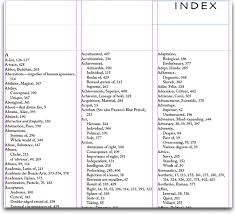
Indexes.
An Index lists the terms and topics discussed in a document, along with the pages they appear on.
- What is word processing used for ?
Example : Microsoft Word , WordPerfect etc.
- Function of a word processor :
Word Wrap and Centering : words that extend beyond the right margin are wrapped around to the next line. Text can be centred between left and right margins
Layout setting : margins, tabs, line spacing, indents , font changes , underlining, boldface and italics can be set and reset anywhere within document.
Headers, Footers and Page numbering : headers and footers are common text printed on the top and bottom of every page were page numbering can be set and reset anywhere within document. It can be roman numerals or alphabetic letters.
Style sheets : a set of formatting characteristics that you can apply to texts, and lists in your document to change their apperance. When you apply a style , you apply whole gorup of formats in one simple task .
Example : instead of taking three separte steps to format a title 16pt, Arial and center-aligned you can do so in one simply step by applying Title style. Other style include Heading 1 and Heading 2.
You can create, view and apply styles from the STYLES AND FORMATING task pane.
Cliparts and pictures : Graphics can be merged into the text and either displayed on screen with the text or in a preview mode before printing. This can be rezized (scaled) , rotated and archored so that it reamins with a particular segment of text. Rules and Borders can also be created within text.
Preview, Print and Group Print :
A document can be preview before printing to show any layout change not normally shown on screen (page breaks, headers, footers etc.). Documents can be printed either individually or as a group with page numbers which is numbered from the first to the last document.
Spelling Checker and Thesaurus : spelling for an individual word, marked block of text or an entire document can be checked. Advance systems can correct the misspellings automatically the next time. A thesaurus displays synonyms for the word at the current cursor location.
______________________________
Advanced Functions :
MAIL MERGE :
Mail Merge is used to create personalized letters by combining together a form letter and a list of data (that may include names, adress etc, ) This list can be created as a document or can be imported from popular database formats.
Mail merge task pane is used to create from letters, mailing labels or envelopes. To complete the basic process, you have to :
- Open or create a main document
- Open or create a data source with individual recipient information.
- Add or customize merge fields in the main document.
- Merge data from the data source into the main document to create a new, merged document
______________________________________
Table Of Contents :
A table of contents is a list of the headings in a doucment. You can use a table of contents to get an overview of the topics discussed in a document. The easiest way to create a table of contents is to use the built-in styles. If you are already using built-in heading styles, follow these steps.
- Click where you want to insert the table of contents.
- On the Insert menu, point to Reference and click Index and Tables.
- Click the Table of Contents tab.
- To use one of the available design in the Formats box.
- Select any other table of contents options you want.
- Select any other table of contents options you want.
__________________________________________
Indexes.
An Index lists the terms and topics discussed in a document, along with the pages they appear on.
- To create an Index, you mark the Index entries in your document and then build the index.
- Once you mark an index entry, Microsoft Words add a special mark (index entry) to your document
- After you've marked all the index entrie, choose and index design and build the finished index.
- Word then collects the index entries nad sort them alphabetically, refernces their page numbers, finds and remorves duplicate entries from the same page, and displays the index the document.
- Use an existing text as an index entry, select the text. To enter your own text as an index entry, click where you want to insert the index entry
- Press ALT + SHIFT + X
- Click where you want to insert finished index .
- On the insert menu, point to Reference, click INDEX AND TABLES and then clock the INDEX tab.
Subscribe to:
Comments (Atom)